
Approving the week
The week arrives already added up
Every person, every week, on one board — their hours split into the bands your payroll pays, a total each row adds up to, and the gross beside it. Approve it, send it back with a reason, or look at the month.
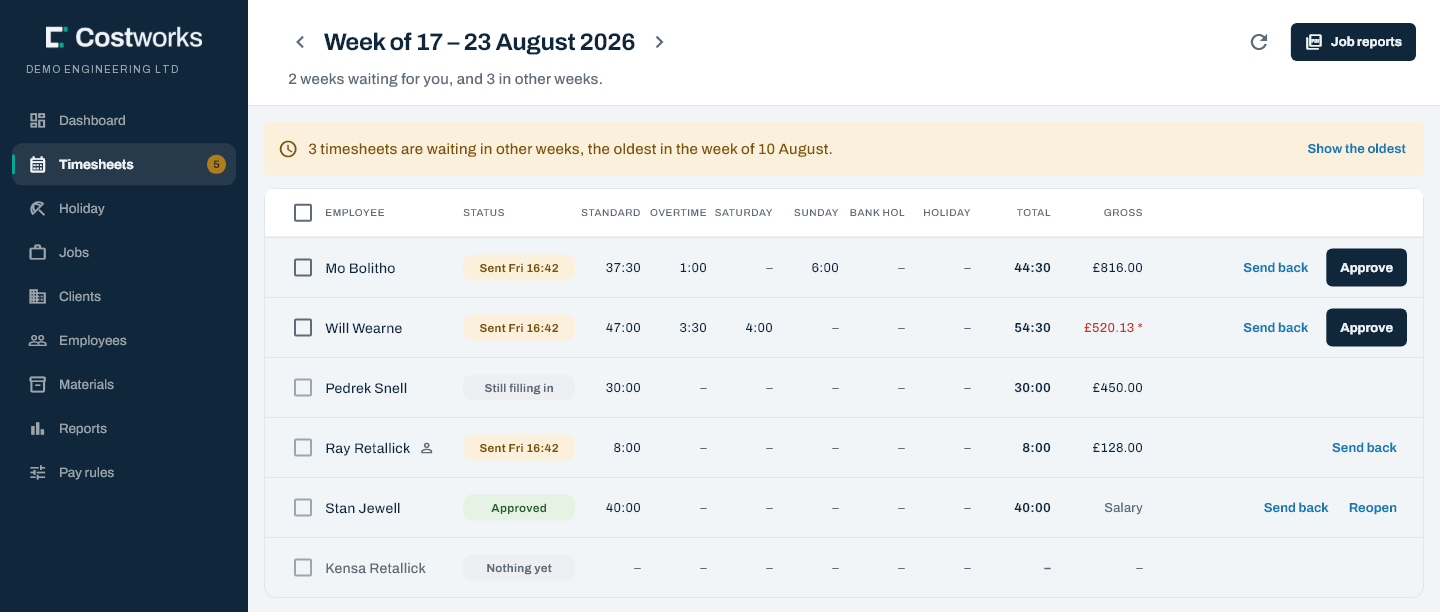
The Timesheets board
Laid out like the sheet you already use
The columns follow the paper sheet, so the first time the office opens the board it already knows how to read it.
Every band, adding up to the total
Standard, Overtime, Saturday, Sunday, Bank holiday and Holiday, then the Total each row adds up to. The Saturday column appears only in a week somebody worked a Saturday, and a Nights column only in a week somebody stayed away.
Nobody is missing
Every active employee has a row, including anybody who has recorded nothing — so a missing week is visible, not quietly absent.
Gross beside every row
Priced at each person’s rate on the day each hour was worked, with stay-away nights included. Salaried staff show as Salary.
Earlier weeks flagged
A banner says when weeks before this one are still waiting, so nothing is left behind as the weeks move on.
Approve selected
Approve one row at a time, or tick the ones you have checked and approve them together.
Open a row
The whole week, day by day, before you sign it
Click a person and their week opens: every day, empty days included, with every shift’s job, type of work, times and records.
- EN1090 records, checked. A shift’s wire, gas and plant are signed off with Mark checked — never by the person who welded.
- Nights away, ticked in any week. The office can mark or clear a stay-away night for anybody, and each change is recorded: “Marked a stay-away night for Mo Bolitho on Tue 13 Oct 2026”.
- The hours stay theirs. The office does not retype a crew member’s shifts. If something is wrong, the week goes back with a reason and they put it right.
Around the board
Friday on one screen, and the job packs in one zip
The dashboard says where the week has got to before you open the board, and the job reports go out once it is done.
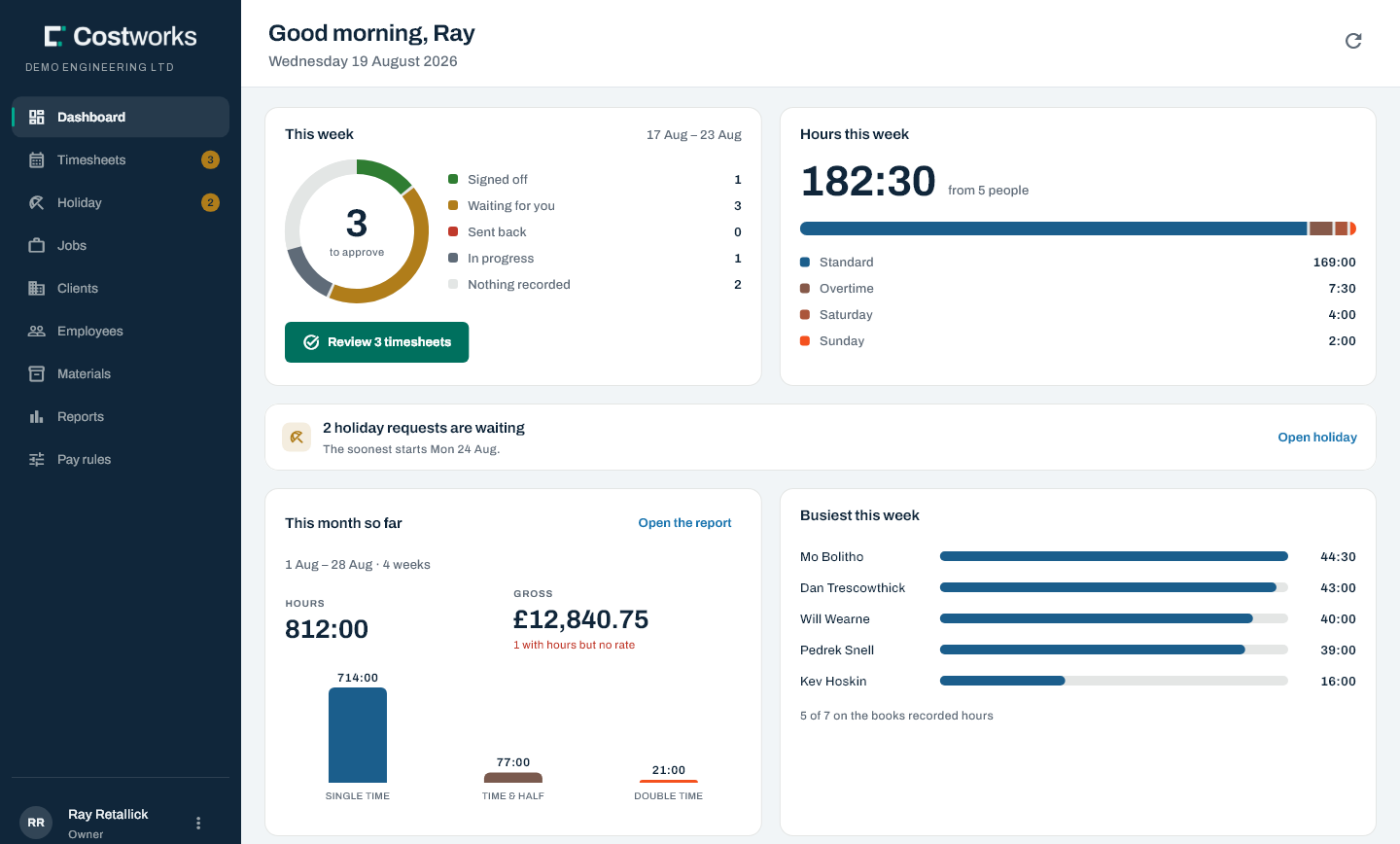
Where every timesheet is
Signed off, waiting for you, sent back, in progress, or nothing recorded — and who it is that has recorded nothing.
Hours with no rate
Anybody with hours logged and no rate set is flagged, because that is the one that quietly makes a payroll figure wrong.
Job reports, as one zip
The audit report for every job worked that week, one PDF per job, named for the job pack. What is in a job report
Questions
About approving the week
Can the office change a crew member’s hours?
No. The person who worked the hours is the one who records them. If something is wrong, the office sends the week back with a reason, the days open again, and the crew member corrects it and sends it again.
The office can add or clear a stay-away night, and add or remove a material, in any week.
Can an admin approve their own timesheet?
No. An office user’s own week has to be approved by somebody else. The server refuses it, not just the screen.
What happens to a week once it is approved?
It locks: nobody can change its hours, materials or nights. If it has to be changed, the office reopens it with a reason, and the reopening is recorded with the name of whoever did it.
Do people who recorded nothing show on the board?
Yes. Every active employee gets a row, including anybody who has recorded nothing that week, so a missing week is visible rather than silently absent.
What is in the Job reports download?
A zip of the audit report for every job worked in that week, one PDF per job, named for the job pack: the people and days, the EN1090 records and who checked them, the materials, and the record history. No pay is in it.
Other features
Before and after the board

Make Friday a review, not a sum
Tell us how your week is approved today, and we will show you the same week on the board.