
- Home
- Help centre
- For the office
- Approving the week
For the office
Approving the week on Timesheets
The screen you will live on. The hours are already banded by your pay rules — you’re agreeing to the figures, not working them out.
Reading the board
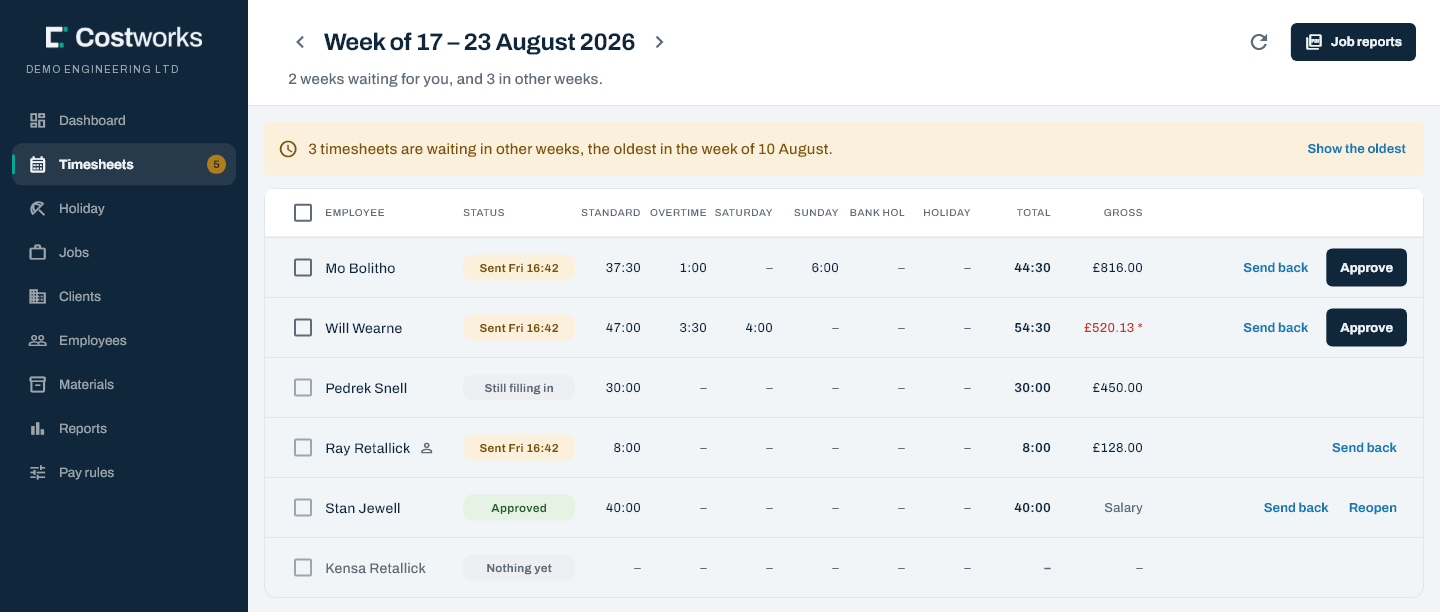
Every active employee gets a row, so somebody who has recorded nothing is visible rather than absent. The bands run across in the order of the paper sheet: Standard, Overtime, Saturday, Sunday, Bank hol and Holiday. Saturday has a column only in a week when somebody worked Saturday hours at the Saturday rate. Each row’s bands add up to its Total.
In a week when somebody stayed away, a Nights column sits between Total and Gross. It counts nights, not hours, so it isn’t part of the total. Gross includes the stay-away pay for those nights — hover over a gross figure to see how much of it is stay-away. A salaried person’s row says Salary, with the nights’ pay under it.
| Status | Meaning |
|---|---|
| Still filling in | Draft. Theirs to change; nothing to do yet. |
| Sent | Waiting for you. This is the queue. |
| Sent back | With the employee, with your reason attached. |
| Approved | Signed off and locked. Goes to pay. |
Approving
- Check the hours and the gross against what you’d expect. Click a row to open the whole week — every day, empty days included, each shift with its job, times, break and hours.
- Click Approve on the row, or tick several and use Approve selected.
Sending one back
Send back needs a reason, and the employee sees exactly what you typed. Write the thing they need to do: “Tuesday shows 14 hours, please check the finish time” beats “wrong”. The week opens again for them to fix and resend.
Reopening an approved week
Reopen puts an approved week back in your queue, not theirs. It asks why, and records your reason and your name in the audit log. Use it when the mistake is yours to fix.
Weeks waiting elsewhere
The board opens on this week. If timesheets are still waiting in an earlier week, a banner above the table says how many and where the oldest is, and Show the oldest takes you there. The badge on Timesheets in the sidebar counts every week waiting, not just this one.
Nights away and EN1090 records
In a person’s week, each day has an Away overnight tick. You can tick or clear a night whatever the week’s status, including a week already approved; one you ticked says (office).
Each EN1090 record shows under its shift with Mark checked, which signs it off with your name and the date. Nobody can check their own work. A check can be withdrawn, and if the crew member changes a checked record, the check comes off.
Job reports for the week
Job reports, top right, downloads the audit report for every job worked that week as one zip, each file named by its job number and title. It warns first if any of the week’s timesheets aren’t approved yet. See The job audit report.
Still stuck? Contact us — a real person, usually the same day.