
- Home
- Help centre
- For the crew
- Shifts & nights
For the crew
Two jobs in a day, night shifts, and changing a shift
Each job you work on in a day is its own shift. Nights and clock changes look after themselves.
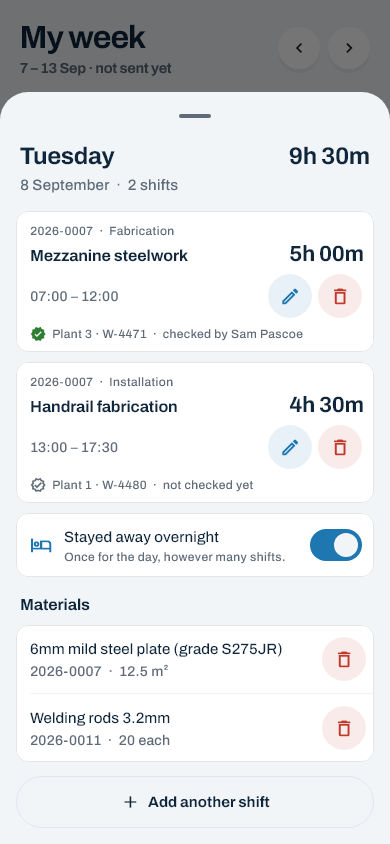
Two jobs in one day
- Save the first job as usual.
- On My week, tap that day again. It now has hours on it, so it opens the day’s shifts.
- Tap Add another shift. The new shift starts where the first one finished.
- Pick the second job, set the finish time and tap Save.
Finishing after midnight
Just put the real times in. If you finish before you started — say 22:00 to 06:00 — it works it out as an overnight shift and says so on the screen. The two nights a year the clocks change come out right too.
Changing or removing a shift
Tap a day on My week that already has hours on it. Each shift is listed with its job, type of work, hours and times.
- Tap the pencil — or anywhere else on the shift — to change it. The form is headed Correcting, and the button says Save correction.
- Tap the bin to take a shift off. It asks first, naming the job, the times and the day, so a mis-tap costs nothing.
A day of holiday has a bin but no pencil: booked holiday is taken off, never changed, and taking it off puts the day back in your allowance.
Once the week is sent
You can still tap a day to see what’s on it — you just can’t change anything until the office sends the week back. See Sending your week.
Still stuck? Ring the office — there’s nothing in the app that somebody there can’t undo. Or contact us.